Using VS Code for Code Reviews
There are multiple free text editors available which can be useful for code review, but I highlight VS Code here because of ease of use.
Connecting VS Code to your EC2 Instance
In order to connect VS Code to your EC2 instance, you will need to configure your local SSH profile.
To do so, you need to update your config file located at ~/.ssh/config to include the private SSH key on your instance.
- From your instance,
cat ~/.ssh/id_ed25519and copy this into a new text file on your computer, for instance~/.ssh/ec2_key. - Create a
configfile in~/.ssh/configif none exists, or simply add to it the information below:Host name_here HostName ip_address User ubuntu IdentityFile ~/.ssh/ec2_key - Click on the tetris box-looking icon, search
Open Remote - SSH, and install the plug-in.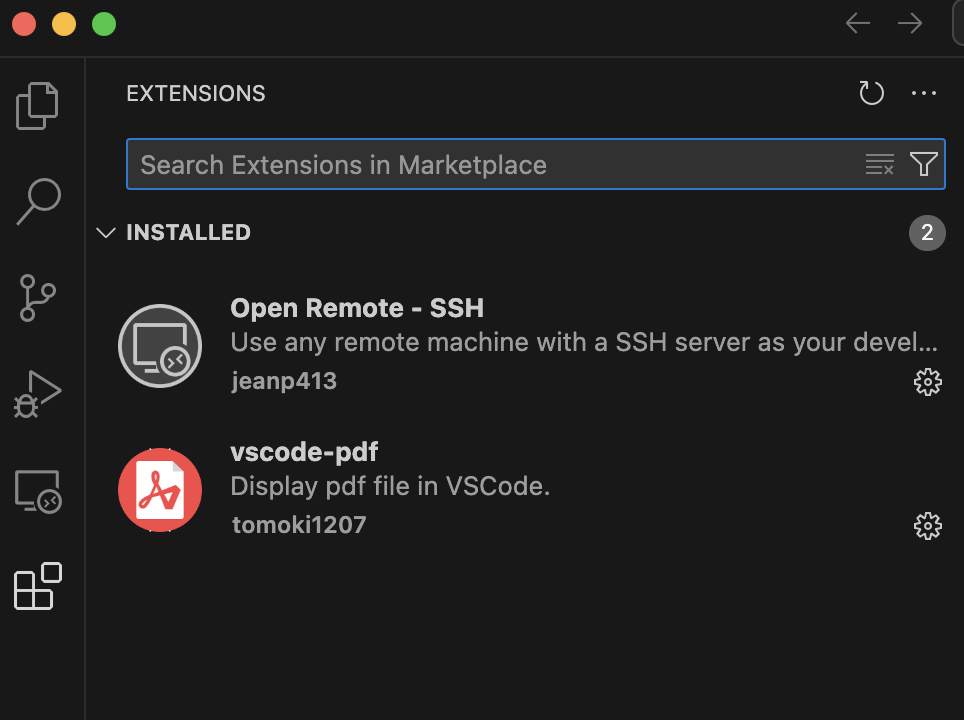
- Within VS Code, Click
Connect to, thenConnect to Hostand Type inubuntu@ip_address.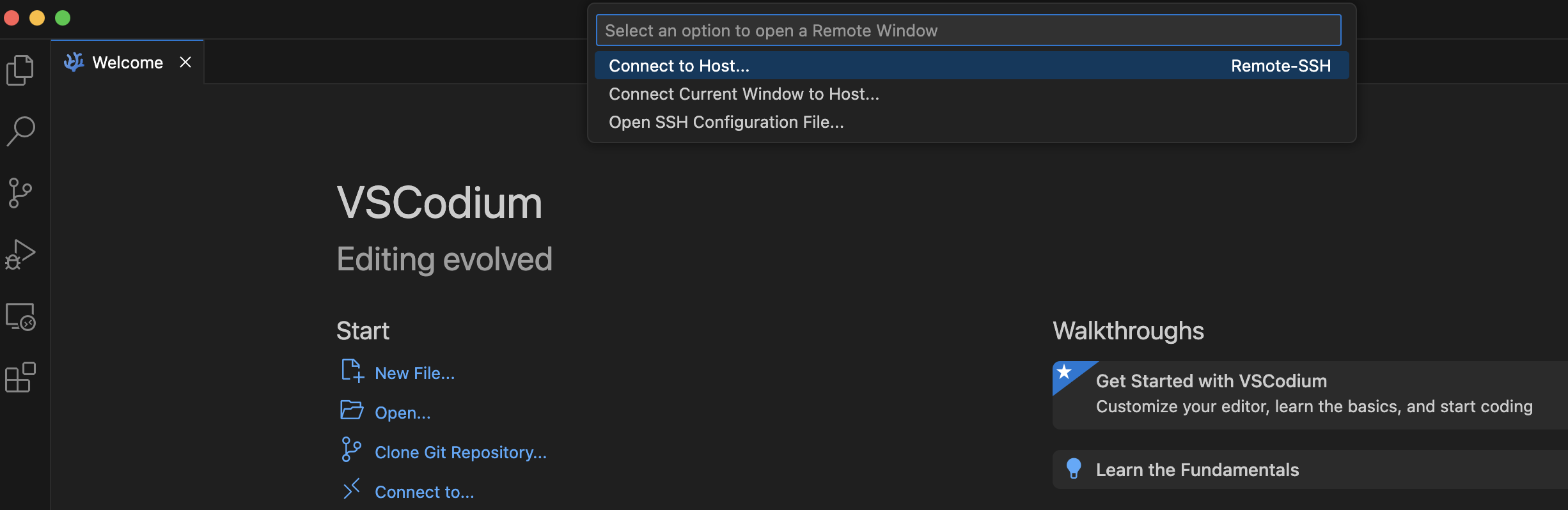
You should be in!
Code Review with VS Code
You can navigate to the repository of interest within VS Code and any differences in your branch compared to the remote branch will now show up with different color codes as below. This is very handy when trying to get an overall view of differences in images and/or files with multiple differences. Below, on the left, multiple files have changes (M = modified) and on the right, there are differences between the local and remote file (red, deleted lines).
